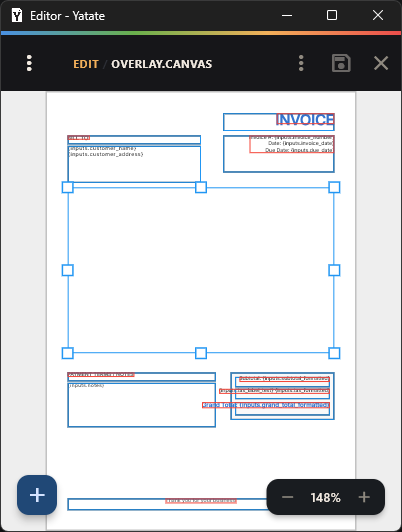
A drag-and-drop canvas for placing content on the page - the visual counterpart to hand-editing layout JSON. Opened from Project Editor by tapping overlay.json (or any other layout partial). Set up the page itself first, in project.ypf.

The canvas

  • Add Block - Text, Image, Box, Scan Code, Grid, PDF, Overlay. See {overlay}.json for what each one does. An Image block's field dropdown lists both photo and signature fields - a captured signature is just a file, the same as a picked photo.
  • PDF and Overlay blocks both have an Auto Size button next to Apply in Properties - PDF sets the block's width/height to the referenced PDF page's own real size; Overlay sets it to the union bounding box of the referenced layout file's own blocks. Neither is automatic on file/page change - review the result and Apply it yourself.
  • Overlay block - place another layout file's own blocks as one unit, positioned/rotated/resized like any other block, instead of composing them with a hand-written overlay() call in process.js. Useful for a sub-layout repeated at several positions (e.g. one card design placed six times on a sheet) - drag/rotate each placement visually instead of computing offsets by hand. The referenced file's own content isn't shown live on canvas yet (just its filename and block count) - open it directly from Project Editor to see/edit what's inside.
  • Zoom/Pan - pinch/wheel/on-screen buttons; Space+drag or two-finger drag to pan.
  • Select / marquee-select - tap a block, or drag on empty canvas (including the gray area beyond the page) to box-select several: left-to-right selects every block fully inside the box, right-to-left selects every block the box touches. Shift adds to the selection, Ctrl removes.
  • Arrow keys nudge the selection 1mm at a time; Delete removes it.
  • Undo/Redo - toolbar icons next to Save, or Ctrl+Z/Ctrl+Shift+Z (Cmd+Z/Cmd+Shift+Z on macOS; Ctrl+Y also works as a redo alias on Windows/Linux). A burst of similar edits - dragging a block, holding an arrow key for repeated nudges - undoes as a single step back to before the burst started, not one step per tick.
  • The most-recently-touched block in a multi-selection (the "primary" block) shows a visibly thicker selection border than the rest.
  • A multi-selection also shows its own bounding-box outline with resize handles - drag one to resize every selected block proportionally at once.
  • Right-click (a stationary click, not a drag) or long-press a block opens a context menu: Bring to Front, Send to Back, Freeze, Delete, Copy, Align, and Properties (hidden once 2+ blocks are selected). It acts on whatever's currently selected - clicking/pressing an unselected block first selects just it.
  • Freeze (context menu, or Ctrl+F/Cmd+F) locks the current selection in place - a frozen block can't be selected, dragged, or resized, and shows no context menu of its own (so there's no per-block way to reverse it). Unfreeze All in the editor's own menu is the only way back.
  • Align: with 2+ blocks selected, press Enter to open it directly; with exactly 1 block selected, reach it via the context menu instead. Pick a reference point on the 3×3 grid, then align horizontal or vertical along that axis - against the last-selected block with 2+ selected, against the canvas bounds with just 1.
  • Save appears whenever there are unsaved changes; closing with changes pending prompts to discard or save. If the file changes outside the app while open, a banner offers to reload or dismiss.

Fonts

Images/fonts are listed on Project Editor too - both live flat in the project folder alongside every other project file, no assets//fonts/ subfolder.

Resolution order when a block references a font_family by name:

  1. Any .ttf/.otf file in this project's own folder.
  2. A global fonts folder shared across every project (no in-app screen for this one - drop files directly into it with your OS's file manager).
  3. The app's built-in default font.

A custom font sharing a name with a built-in one wins for that project. Only normal and bold weights are selectable per block. See Assets Overview for the full built-in font list.

Limitation

The canvas only shows and edits page 1. For a multi-page base.pdf, place page-2+ content by hand-editing the layout JSON's blocks ("page": 2, etc.) via the Script Editor or any external editor.